
“The history of your codebase is a first-class artifact. Treat it that way.”
There are several Git merge strategies for bringing branches together in Git, and at some point, you might have found yourself confused about how they differ and what they actually do. Whether you’re working alone or collaborating with a large team, choosing the right Git merge strategy can have a significant impact on the readability and maintainability of your commit history.
This guide breaks down the most common Git Merge Strategies, explains how they work, and helps you decide when to use each one.
Why Git Merge Strategy Matters
Before getting into the strategies themselves, it helps to understand what we’re actually trying to protect, because that’s what makes the difference between a history you can work with and one you dread opening.
Every Git merge strategy shapes your commit history differently. And your commit history isn’t just a log, it’s something your team actively uses:
- Debugging: When something breaks, a clean history lets you walk backwards through changes one step at a time to find exactly which commit introduced the problem. A tangled history makes that same task painful and unreliable. (Git has a tool called git bisect that automates this; we’ve listed it in the references at the end if you want to explore it.)
- Undoing changes: Reverting a well-scoped commit is a one-liner. Reverting a messy merge that bundles together five unrelated changes means untangling the mess first.
- Understanding why code exists: A good commit history isn’t just a list of what changed, it’s a record of why. When you’re staring at a strange piece of code six months later, a well-written commit message in a clean history can answer the question before you even have to ask.
- Spotting when something went wrong: When a bug slips through, a clear history makes it easy to narrow down where it crept in, even if you weren’t around when it happened.
- Code review: A clean, logical sequence of commits tells the story of a change. Reviewers can follow the reasoning step by step, rather than trying to make sense of a pile of “fix”, “oops”, and “WIP” commits.
The git merging strategy you choose directly determines how readable and useful your history ends up being. None of the above requires you to know any specific command upfront; the strategies below will make this concrete as we go.
Let’s walk through every strategy.
1. Fast-Forward Merge (--ff)
What it does
A fast-forward merge happens when main hasn’t moved since you branched off, meaning there haven’t been any new commits to main since you last checked out (or rebased) from it. In that case, Git doesn’t need to do anything fancy; it just moves the main pointer forward to the tip of your feature branch. No new commit is created.
- Before:
- main: A — B
- feature: B — C — D
- After (fast-forward):
- main: A — B — C — D
How to use it
- git checkout main
- git merge feature-branch: #Git will fast-forward if possible, else it will create a merge commit (covered in the next strategy)
- git merge –ff-only feature-branch # Fast-forward if possible, else fail
When to use it
- On solo projects or personal branches where you want a linear history.
- When your feature commits are individually meaningful but still all contribute to the same feature.
- When you want zero noise in git log.
When to avoid it
- When you want a record that a feature branch existed as a unit. Fast-forward erases that context, so you won’t be able to tell where a feature started or ended.
The tradeoff
Pro: Cleanest possible linear history.
Con: You lose the information that a set of commits was grouped as a single feature.
2. No-Fast-Forward Merge (--no-ff)
What it does
Even if a fast-forward is possible, –no-ff forces Git to create a merge commit. This preserves the “branch topology” so you can see in the graph exactly where work was done in parallel.
- Before:
- main: A — B
- feature: B — C — D
- After (–no-ff):
- main: A — B ———– M
- \ /
- feature: C — D –/
M is a merge commit. Merge commits are special because, unlike regular commits that have one parent, they have two. In this case, one parent is B (the last commit on main) and the other is D (the tip of the feature branch). This is what lets Git know that two separate lines of work came together here.
How to use it
- git checkout main
- git merge –no-ff feature-branch -m “Merge feature: user authentication”
When to use it
- When your feature branch has multiple clean, separate, meaningful commits that you want to preserve as a group. The merge commit becomes the envelope that holds them together.
- When you want to be able to look at your history at a high level and see only the meaningful integration points, the moments when a feature landed, rather than every individual commit. The merge commit acts as a natural summary point you can filter to. (git log –merges and git log –first-parent are useful here; referenced at the end.)
- In workflows like GitFlow, the branching model is built around merge commits since it depends on them to track what went into each release, so this fits naturally.
When to avoid it
- If your team is moving very fast and merging many small branches throughout the day, the merge commits can themselves become noise. Every glance at the history shows a tangle of merge lines rather than a clear sequence of features landing.
The tradeoff
Pro: Preserves branch context; you can filter history to see only merge points for a high-level view.
Con: More complex graph; harder to follow without a visual tool.
Recommendation: Merge commits are a good idea as they keep your work history intact and make it clear that the feature was built separately and when it was merged. That said, this also means your feature branch commits should stay clean. If some of your commits are just “fix” or “fix2”, consider squashing those into your meaningful commits before raising the PR. (Squashing your own commits before a PR is different from doing a squash merge, which we cover next.)
3. Squash Merge (--squash)
What it does
A squash merge is a Git merge strategy that takes all the commits from your feature branch and collapses them into a single new commit on the target branch. All the individual commits are gone; what lands on main is one commit that represents the entire feature.
- Before:
- main: A — B
- feature: B — C — D — E (messy WIP commits)
- After (squash):
- main: A — B — S
- (S contains the combined changes of C + D + E)
Note: unlike –no-ff, there’s no merge commit. S has only one parent: B.
How to use it
- git checkout main
- git merge –squash feature-branch
- git commit -m “feat: add user authentication”
- # The feature branch still exists; you need to delete it manually
- git branch -d feature-branch
When to use it
- When the feature branch has messy “WIP”, “fix typo”, “oops” commits that don’t belong in permanent history.
- When you want main to read like a clean changelog.
- When each PR/MR should map to exactly one commit for easy revert.
When to avoid it
- When the individual commits to the feature branch carry meaningful, standalone context.
- When you rely on walking through individual commits to find where a bug was introduced, squashing removes that granularity.
- When two developers collaborated on the branch, squashing obscures co-authorship.
The tradeoff
Pro: Immaculately clean history; trivial to revert an entire feature.
Con: Lose granular commit history; blame and bisect become less useful.
Recommendation: Squash when your commits are cohesive and belong together as one unit of work, or when you’re fine with losing the individual changes you made along the way. It breaks down when the individual carries their own meaning, and losing it would lose context.
4. Rebase (git rebase)
What it does
Think of rebase like this: it first finds the commit where your feature branch diverged from main and holds all your feature commits in memory, then resets your branch to the latest main state, then re-applies all your feature commits on top of it, as if you had branched off from the newest version of main all along. The end result is a clean, linear history with no merge commit.
- Before:
- main: A — B — C
- feature: B — D — E
- After (rebase feature onto main):
- main: A — B — C
- feature: C — D’ — E’
D’ and E’are new commits with the same changes, but replanted onto C as their new starting point. This is why their SHAs change.
You can also use rebase interactively to clean up your commits before merging, reordering, combining, or rewriting them. This is a deeper topic; see the references at the end.
How to use it
- # Update your feature branch to sit on top of the latest main
- git checkout feature-branch
- git rebase main
When to use it
- To keep your feature branch up to date with main without cluttering history with merge commits.
- Before opening a PR, make sure your changes sit cleanly on top of the latest code and don’t have unnecessary merge noise.
When to avoid it
- Never rebase a shared branch. Rebase rewrites commits and gives them new SHAs. If a teammate has already pulled those commits and you rebase and force-push, their local history and your remote history have now diverged. This causes serious headaches. The rule is simple: only rebase commits that live exclusively in your own local branch.
- When you need a clear record of exactly when your work was integrated into the main codebase. Rebase makes it look like you always worked off the latest main, which isn’t literally true. If that audit trail matters to your team, a merge commit is more honest.
The tradeoff
Pro: Linear history; clean commit structure; powerful history rewriting.
Con: Rewrites SHAs, which is dangerous on shared branches; can also produce complex conflicts that need resolving commit by commit.
Recommendation: Rebase locally before raising a PR, or whenever main has moved far enough ahead that your commits need to account for the new changes. Just not on shared branches, which is why shared branches are a problem in themselves. Please have everyone work on their own branches.
5. Cherry-Pick (git cherry-pick)
What it does
Cherry-pick applies a specific commit (or range of commits) from one branch onto your current branch. It creates a new commit with the same changes but a different SHA.
- main: A — B — C — D
- hotfix: B — X (X is the fix we need in main)
- After cherry-pick X onto main:
- main: A — B — C — D — X’
How to use it
- # Pick a single commit
- git cherry-pick <commit-sha>
- # Pick a range of commits
- git cherry-pick abc123..def456
- # Cherry-pick without committing (stage only)
- git cherry-pick –no-commit <commit-sha>
- # Pick and edit the commit message
- git cherry-pick -e <commit-sha>
When to use it
- Hotfixes: Apply a bug fix to both main and the release branch without merging the entire feature work.
- Backporting: Port a fix from main to an older v1.x support branch.
- Selective work: Pull in some specific commits from a feature branch without taking the whole branch.
When to avoid it
- If your team cherry-picks changes across environments to raise PRs (say, dev to QA to preprod to prod), the branches will slowly diverge. Since nobody cherry-picks when pulling changes back down, those pulls happen as merges, which then introduce duplicate commits into the history. Over time, the graph becomes so tangled it’s nearly unreadable. If your team wants to go with this workflow, it is recommended to rebase the lower environment branches from production weekly. Production is the only source of truth since that’s what users see regularly, and rebasing against it keeps everything in sync and the graph clean. If things have already diverged too far for a rebase to be practical, a hard reset to production is the way to go; just make sure the whole team knows so they can update their local branches afterwards.
- When commits have complex dependencies on each other, cherry-picking partial work often causes conflicts or subtle bugs because the commit assumes context that doesn’t exist on the target branch.
- When it creates duplicate commits in history (same change with two different SHAs), it confuses future git log and git blame.
The tradeoff
Pro: Surgical precision; great for hotfixes and backporting.
Con: Duplicate commits in history; overuse signals a workflow problem.
Comparison at a Glance
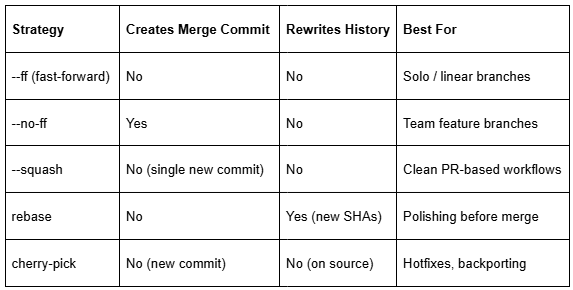
Also read: What is CI/CD Pipeline? and How it works?
Practical Recommendations by Workflow
Small PRs representing a single feature or fix
If your team raises separate PRs for every feature, fix, or chore (which is good practice) and you don’t mind losing the individual commits from the feature branch, squash merge is your best bet. It also means you don’t need to stress about keeping your feature branch commits perfectly clean or rebasing from main every time something gets pushed, since it’s all getting squashed anyway. Every PR becomes one clean commit on main, so your history reads like a changelog. Easy to see what landed and when, and reverting a feature is just one git revert.
Versioned software with release branches
If your team maintains release branches like v1.x or v2.x alongside main, you can use no-fast-forward merge when bringing features into your development branch. This preserves the shape of your history so you can see which features went into which release. You can also cherry-pick commits when you need to apply a bug fix to multiple branches without pulling in unrelated work.
Solo or prototype work
Fast-forward keeps things clean and simple when you’re the only one on the repo. If you want to tidy up a messy branch before sharing it, rebase is your friend. Just do it before pushing.
Large open source projects or diverse teams
Whatever git merging strategy you pick, pick one and enforce it. A history that’s half-squash, half-no-ff, with a few rebases scattered in, is harder to read than any single strategy applied consistently. Most platforms (GitHub, GitLab) let you lock down which merge strategies are allowed on a repo. Use that.
A Few Hard-Won Rules
- Never rebase a public branch.
If someone else has pulled it, rebasing rewrites the history they’ve built on. This is a cardinal rule. - Write merge commit messages that mean something.
Merge branch ‘feature’ tells you nothing. Merge feature: rate-limiting middleware (resolves #412) is actually useful. - Use git log –oneline –graph regularly.
Make your history visible. A badly shaped graph is a sign that something’s off. Clean it up before it becomes someone else’s archaeology project.
TL;DR
- Fast-forward: Cleanest history, no branch context preserved.
- No-fast-forward: Best default for team feature branches.
- Squash: Best for PR-based workflows where history = changelog.
- Rebase: Powerful history rewriting, but only on private branches.
- Cherry-pick: Surgical tool for hotfixes and backporting.
Git merge strategies are not religious choices. They’re engineering tradeoffs. Understand what each one optimizes for, pick what fits your team’s workflow, and enforce it consistently. A messy history doesn’t hurt you today, but it will, and usually at the worst possible time.
Conclusion
There is no universally “best” git merging strategy, only the one that best fits your team’s workflow, release process, and approach to maintaining history. Whether you prefer the simplicity of fast-forward merges, the clarity of squash merges, the context provided by merge commits, or the flexibility of rebasing and cherry-picking, the key is consistency. A well-defined git merging strategy keeps your repository easier to understand, debug, and maintain as your codebase grows.
Stay Connected
Looking for more practical Git tips, software engineering best practices, and development workflow guides? Follow Xcelore, an AI development company, and stay up to date with insights that help teams build cleaner code, collaborate more effectively, and ship software with confidence.